Updated July 2026
Key takeaways
No single tool stops all phishing. The best protection comes from layering a few free tools that cover different moments: the email, the link, the login page, and your passwords.
Haven is our top pick for browser-level phishing protection for consumers, because it flags fake and impersonated login pages before you enter anything, and it is free for individual use.
Your email filters (Gmail, Outlook) and Google Safe Browsing are useful free baselines, but they miss brand-new and convincing fakes.
A password manager is one of the most underrated anti-phishing tools, since it will not autofill your password on a lookalike domain.
Have I Been Pwned is a free way to check whether your data is already exposed and where to change passwords.
Most "best phishing tools" lists are written for IT departments with enterprise budgets. This one is for everyone else — the individual, the small team, and the person who just wants to browse without worrying.
Phishing protection in 2026 isn't a single tool. It's a set of layers — each one covering what the others miss. Most roundups of phishing protection software focus on enterprise platforms that cost thousands of dollars and require a dedicated IT team to manage. This isn't that list.
The good news for everyday users is that most of the best layers are free, require no technical setup, and take minutes to install. Here's what's actually worth using, and what each one does and doesn't cover.
1. Haven — the best browser phishing protection tool for consumers
Haven is a Chrome extension that works at the browser level — the exact place where most phishing attacks actually land. It confirms you're on the real version of a site before you interact with it, scans incoming emails for suspicious senders and lookalike domains, and alerts you before you enter credentials on a page that isn't what it claims to be.
What makes Haven different from most anti phishing tools on this list is its approach. Rather than checking sites against a database of known threats — which always lags behind new attacks — Haven focuses on confirming that sites are legitimate. A phishing page that launched this morning has no threat history and will pass most security tools. Haven catches it anyway because it's not asking "is this site known to be bad?" It's asking "is this site actually what it claims to be?"
It covers over 200 site categories including banking, email, tax platforms, healthcare, government, and more. It scans both your browser and your inbox. Free to download with no friction, no account required to get started. Download Haven from the Chrome Web Store.
Best for: Anyone who wants browser and email phishing protection without technical setup. Cost: Free. Limitation: Chrome only for now.
2. Google Safe Browsing — the baseline everyone already has
If you use Chrome, Google Safe Browsing is already running in the background. It checks sites against Google's database of known phishing pages, malware, and deceptive content and warns you before you land on something dangerous.
It's a solid first layer and genuinely catches a lot. The limitation — as we've written about in detail — is that it's entirely reactive. [link to Google post, anchor text: "Google's filters can only flag sites that have already been identified as dangerous"] A new phishing site that launched today has no threat history and will pass Safe Browsing without a flag.
Best for: A free baseline that requires no setup because you already have it. Cost: Free, built into Chrome. Limitation: Reactive by design — misses brand new attacks.
3. Malwarebytes Browser Guard — free and lightweight
Malwarebytes Browser Guard is a free browser extension that blocks ads, trackers, and known malicious sites. It's lightweight, doesn't slow your browser noticeably, and adds a layer of protection on top of what Chrome provides natively.
It's not as comprehensive as Haven for phishing specifically — it doesn't scan emails or confirm site legitimacy — but it's a solid free addition that covers malware and scam sites effectively. If you want a free second layer on top of Google Safe Browsing, this is the one to add.
Best for: Users who want a free lightweight layer on top of their existing browser protection. Cost: Free. Limitation: Focused on known threats — same reactive limitation as Google Safe Browsing.
4. Guardio — consumer browser protection with a subscription
Guardio is a paid browser extension that offers real-time protection against phishing sites, malicious extensions, and data breach monitoring. It has a clean interface and is genuinely user-friendly for non-technical people.
It's a legitimate tool worth considering if you want a more comprehensive paid option. The honest caveat is that its core protection model — checking against threat databases — shares the same structural limitation as most phishing protection software when it comes to brand new attacks. [link to antivirus myths post, anchor text: "we wrote about why database-based tools have a gap against newly launched phishing sites"]
Best for: Users who want a paid consumer-friendly option with broader coverage. Cost: Around $10 to $15 per month. Limitation: Subscription cost and the same reactive gap against new threats.
5. A password manager — the most underrated anti phishing tool you already need
This one surprises people. A good password manager like 1Password or Bitwarden doesn't just store your passwords — it protects you from phishing in a way most people don't realize.
When you're on a fake login page — a convincing replica of your bank, your email, a service you use — your password manager won't autofill your credentials. It won't recognize the domain because it doesn't match the real site you saved. That moment of "why isn't it filling in?" is a genuine early warning signal that something is wrong.
It costs almost nothing — Bitwarden has a generous free tier — and eliminates password reuse which is how one successful phishing attack becomes five compromised accounts.
Best for: Everyone. This is table stakes for anyone serious about online safety. Cost: Free to a few dollars per month depending on the tool. Limitation: Doesn't block phishing directly — it just refuses to hand over your credentials on a fake site.
6. Gmail and Outlook phishing filters — the free baseline everyone already has
Both Gmail and Outlook have built-in phishing detection that catches a meaningful volume of phishing emails before they reach your inbox. They're not perfect — sophisticated attacks get through regularly — but they're free, require no setup, and do real work.
The important thing to know about these filters is what they don't catch. [link to email post, anchor text: "here's a plain-language guide to spotting the phishing emails that make it through anyway"]
Best for: A baseline everyone already has — make sure yours is set to the highest sensitivity available. Cost: Free, built into your email provider. Limitation: Misses targeted attacks, newly registered domains, and sophisticated impersonation emails.
7. Have I Been Pwned — find out if your data is already out there
Have I Been Pwned (haveibeenpwned.com) is a free tool that lets you check whether your email address has appeared in a known data breach. It's not phishing protection in the traditional sense — it doesn't block anything in real time. But it tells you something important: whether your credentials are already circulating on the dark web.
If your email appears in a breach, change the password associated with that account immediately — and every other account where you use the same password. Attackers use breached credential lists to craft targeted phishing attacks that reference your real account details to appear legitimate. Knowing you've been breached is the first step to reducing that risk.
Best for: Anyone who wants to know their current exposure level before doing anything else. Cost: Free. Limitation: Reactive — tells you about past breaches, not current threats.
How to think about layering these tools
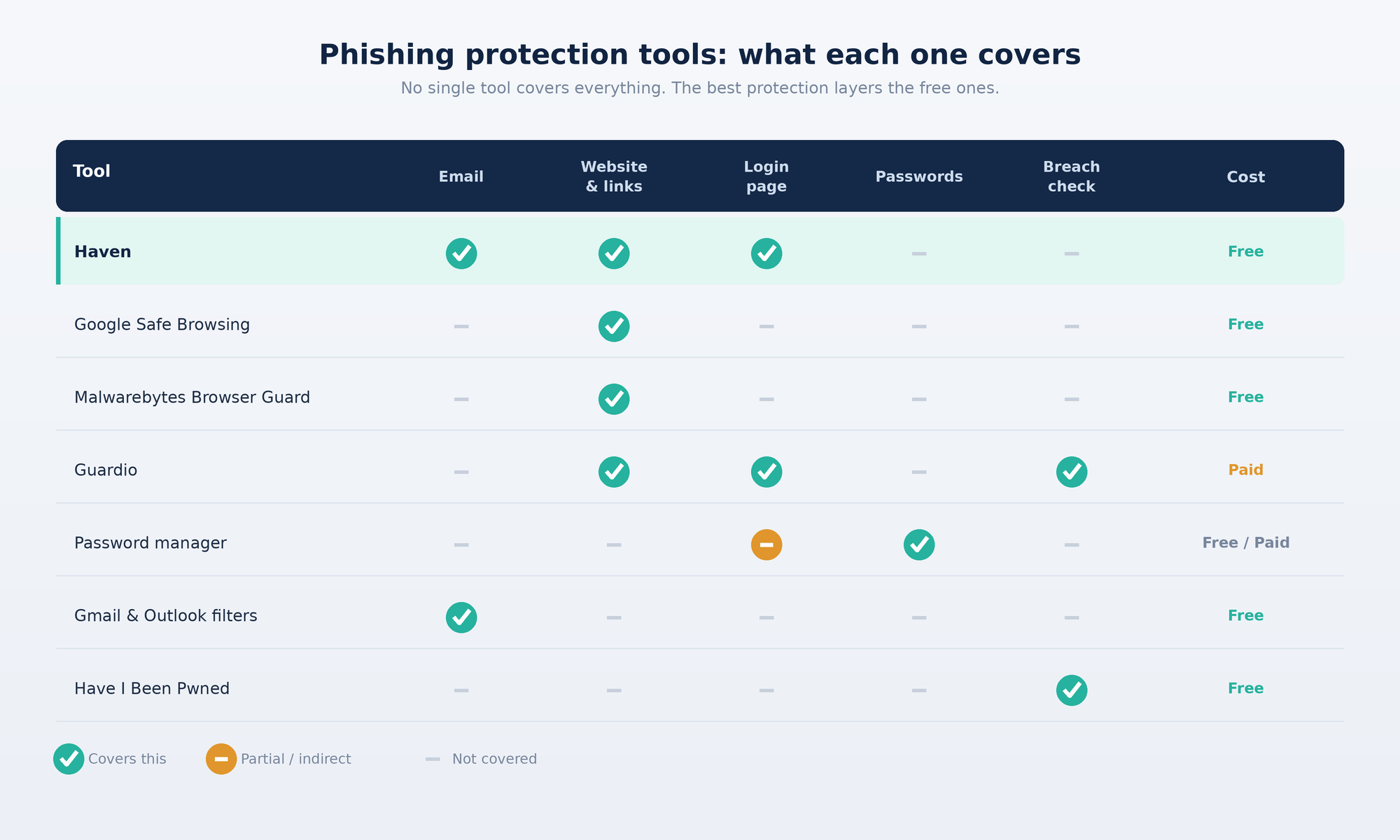
No single tool on this list catches everything. That's not a criticism — it's how security works. The goal is to layer tools that cover different surfaces and different types of attacks so that what one misses, another catches.
A practical setup for most people: Gmail or Outlook filters as the baseline, Haven for browser and email phishing protection, a password manager to catch the moments where you almost enter credentials on a fake site, and a quick check on Have I Been Pwned to understand your current exposure. That combination covers the vast majority of phishing risk most people face in 2026 — and most of it is free.
The phishing protection software that doesn't make this list — enterprise platforms like Proofpoint, Mimecast, and Microsoft Defender for Office 365 — is genuinely excellent but built for IT teams managing hundreds of users. If you're a small business ready to invest in a more robust setup, those are worth exploring. For everyone else, the tools above are where to start.
About Haven
Haven is a browser security extension that helps people and organizations make safer trust decisions online.
It works at the browser level, in the moment between clicking a link and entering your information, to flag suspicious sites, fake login pages, and phishing before you act on them. Rather than relying only on lists of known threats, Haven analyzes the page in front of you, which helps it catch newly created and impersonated pages that other tools can miss.
Haven is free for individual use. Haven for Business and Haven For MSP extends browser-level protection across teams. Haven is operated by MirrorTab, Inc.
FAQs
What are the best phishing protection tools in 2026?
The best setup layers a few free tools that each cover a different moment: a browser tool that flags fake login pages (such as Haven), your email provider's phishing filters (Gmail or Outlook), Google Safe Browsing, a password manager, and a breach checker like Have I Been Pwned. No single tool catches everything, so combining them gives the strongest coverage.
What is the best anti-phishing software for business?
Businesses usually layer email security (Microsoft 365 or Google Workspace protections), phishing-resistant multi-factor authentication such as passkeys, security awareness training, and a browser-layer tool that flags fake login pages for every employee. The right mix depends on your size and systems, but browser-level protection closes the gap where a targeted email turns into a stolen credential.
What tools are best for preventing phishing, fraud, and fake websites?
For fake websites and login pages specifically, a browser tool that verifies whether a page is genuine (like Haven) is the most direct defense, since it works at the moment you are about to enter information. Pair it with your email filters to catch phishing messages and a password manager to avoid entering credentials on lookalike domains.
Are there free anti-phishing tools?
Yes. Google Safe Browsing, Gmail and Outlook phishing filters, Malwarebytes Browser Guard, Have I Been Pwned, and Haven all have free options. Haven is free for individual use. Many people get strong protection without paying, by layering these free tools.
What is the best anti-phishing browser extension?
For catching fake and impersonated login pages, we recommend Haven, which analyzes the page in front of you and warns you before you enter credentials, and is free for individual use. Malwarebytes Browser Guard and Guardio are other browser options, with Guardio's full protection behind a paid plan.
Do I still need anti-phishing tools if I have Gmail or Outlook filters?
Yes. Email filters catch many known phishing messages, but they miss brand-new and convincing fakes, and they do not protect you once you are on a fake website. Adding a browser-layer tool and a password manager covers the moment you are about to enter your credentials, which is where email filters stop.