If you're using Google Chrome, and with roughly 65% of the world browsing on it, there's a good chance you might assume Google has your security covered. And honestly? Chrome does a lot right. But it also has some real, well-documented gaps that even cautious users can fall through. This post breaks down exactly what Chrome protects you from, where it falls short, and the specific settings and habits that will actually make a difference.
Is Google Chrome Safe?
The short answer: yes, Chrome is one of the more secure browsers available. But "secure" doesn't mean invincible, and it definitely doesn't mean you can click freely without thinking.
Chrome's built-in security rests on a few key pillars:
Sandboxing. Chrome runs each tab in its own isolated process, so if one tab gets compromised by malware, it can't easily spread to the rest of your browser or your device.
Automatic updates. Chrome updates itself quietly in the background, so most users are always running the latest version with the newest security patches applied.
Safe Browsing. This is Chrome's most visible security feature - the warning page that appears when you try to visit a site Google knows to be dangerous.
These are meaningful protections. But each one has limits.
What Is Chrome's Safe Browsing and How Well Does It Actually Work?
Safe Browsing is Google's system for checking URLs against a list of known malicious sites. It's been running since 2005 and now helps protect over 5 billion devices across Chrome, Gmail, Search, and Android.
In 2024, Google upgraded Standard Protection to check sites in real time against a server-side list rather than a local one that only updated every 30 to 60 minutes. According to Google, this change alone blocks 25% more phishing attempts. And if you enable Enhanced Protection - Chrome's highest security mode - you get AI-powered analysis that Google says makes you twice as safe from phishing and scams compared to standard mode.
That sounds reassuring. Here's the catch.
Independent researchers at Norn Labs tested Safe Browsing against 254 confirmed phishing sites in February 2026. It flagged just 41 of them - missing nearly 84%. The reason: modern phishing attacks are designed to evade exactly this kind of detection. They use cloaking, redirect chains, CAPTCHA gates, and conditional execution so that security scanners see a harmless page while the actual victim gets the malicious one. Safe Browsing works from a blocklist of known bad sites. A brand-new phishing page launched an hour ago won't be on it yet.
The gap is real, and it's precisely where most successful phishing attacks live.
The Threats Chrome Doesn't Protect You From
Phishing links in emails, texts, and messages
Chrome's Safe Browsing kicks in when you navigate to a URL in the browser. It doesn't scan links before you click them - in your Gmail inbox, in a text message, in a Slack message, or in a document someone shared with you. By the time your browser loads the page, you've already clicked.
This is how most phishing attacks actually work. The dangerous moment isn't on a sketchy website - it's in an email that looks like it's from your bank, or a text that appears to come from FedEx, or a fake DocuSign link in a shared file. Check out our guide on how to spot a phishing email to learn the warning signs before you click.
Malicious browser extensions
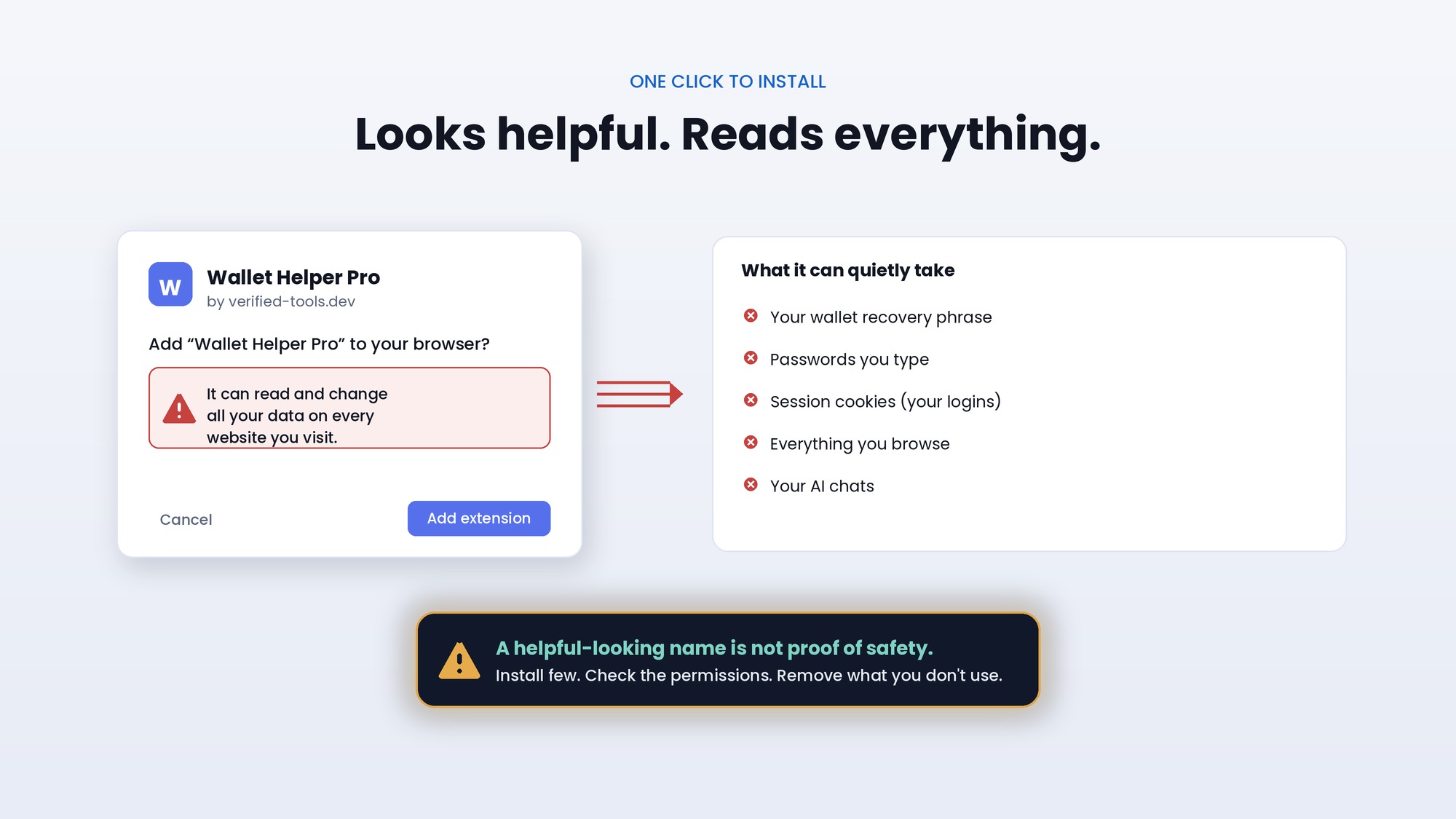
This is one of the most underappreciated threats in browser security right now. In early 2026, security researchers uncovered 108 malicious extensions on the Chrome Web Store that were secretly stealing Google account data and Telegram sessions across roughly 20,000 users. These weren't obviously shady tools - they appeared as Telegram sidebar clients, YouTube enhancers, and translation utilities. Completely normal-looking.
The Chrome Web Store does vet extensions, but the vetting isn't foolproof. Extensions can also turn malicious after installation if a developer's account gets compromised and a bad actor pushes a malicious update to an otherwise legitimate extension. In early 2025, that happened to a series of extensions exposing over 3.2 million users to spyware-like behavior before anyone noticed.
Extensions have deep access inside your browser - they can read your keystrokes, see your cookies, inject code into pages you visit, and intercept your web traffic. That's enormous power to hand to a piece of software you installed in 30 seconds.
Zero-day vulnerabilities
Chrome patches security flaws regularly, but there's always a window between when a vulnerability is discovered by a bad actor and when Google ships a fix. High-profile attacks against Chrome users, including campaigns targeting Gmail and YouTube accounts, have exploited these windows. Automatic updates help, but they're not instantaneous.
Social engineering
No browser can protect you from yourself. If a convincing fake website asks you to enter your login credentials and you do it, Chrome has no way to intervene. Social engineering, when attackers manipulate people rather than systems, is intentionally designed to bypass technical controls.
Chrome Security Settings You Should Check Right Now
The good news: Chrome gives you meaningful controls that most people never touch. Here's what's worth changing.
1. Enable Enhanced Safe Browsing
This is the highest-impact setting available to you and it takes 10 seconds.
Go to Settings → Privacy and security → Security and switch from Standard to Enhanced protection. This turns on AI-powered analysis of URLs and downloads in real time, rather than relying solely on a static blocklist. It also strengthens protections in Gmail and provides tailored warnings if an attack is detected on your Google account.
The trade-off: Enhanced mode shares more data with Google. If that's a concern for you, Standard with real-time checking is still a meaningful upgrade over older versions of Chrome.
2. Keep Chrome updated (and check it's actually current)
Chrome updates automatically, but sometimes the update is downloaded and waiting for you to relaunch the browser. Go to Settings → Help → About Google Chrome - if there's a pending update, you'll see a prompt to relaunch. Do it. This takes less than a minute and ensures you have the latest security patches.
3. Audit your extensions ruthlessly
Go to chrome://extensions and look at every single thing installed. For each one, ask: do I remember installing this? Do I actually use it? If the answer to either is no, remove it immediately.
For the extensions you keep, click Details and review the permissions. If a simple tool like a colour picker is requesting access to read your data on all websites, that's a red flag. Limit extensions to those from established, trusted developers - and fewer is always better.
4. Review site permissions
Some websites have been granted access to your camera, microphone, or location. Over time this can add up in ways you didn't intend. Go to Settings → Privacy and security → Site settings and review what each type of permission has been granted. Revoke anything you don't recognise or actively need.
5. Run Chrome's built-in Security Check
Go to Settings → Privacy and security and click Check now under Security Check. Chrome will scan for compromised passwords saved in your browser, flag any dangerous extensions, and confirm your browser is up to date. It's a useful five-minute audit.
6. Lock down your Google account
Your Chrome security is only as strong as your Google account, because that's where your saved passwords, browsing history, and sync data live. Go to myaccount.google.com and:
Enable two-step verification (2FA) - this means even if someone steals your password, they can't get in without access to your phone
Review your recovery phone and email to make sure they're current
Run the Security Checkup to see if any recent account activity looks suspicious
Beyond Settings: Habits That Actually Improve Browser Security
Settings get you so far. Habits get you the rest of the way.
Think before you click any link. This sounds obvious until it isn't. Phishing links in emails and texts are designed to create urgency - a package delivery notification, an account suspension warning, an unexpected invoice. Slow down. Use a link checker before clicking anything you didn't expect to receive.
Don't save passwords in your browser. Chrome's password manager is convenient, but a dedicated password manager (1Password, Bitwarden) is significantly more secure, harder to compromise, and works across devices and browsers.
Use a strong, unique password for your Google account. If your Google account gets compromised, an attacker potentially gets access to everything Chrome has saved on your behalf.
Be suspicious of anything asking you to install a Chrome extension. Legitimate websites and services rarely need you to install a browser extension to function. If something is pushing you hard to add one, treat it as a red flag.
The One Gap Chrome Can't Fill
All of the above makes Chrome meaningfully more secure. But there's a structural gap that no Chrome setting can close: the moment before you click.
Chrome's protections activate in the browser. But the most dangerous links arrive before you get to the browser - in your email, in a WhatsApp message, in a LinkedIn DM. By the time the URL loads, you've already made the decision.
This is exactly what Haven is built for. Haven's Chrome extension checks links in real time before you visit them - not from a static blocklist, but with live analysis that catches new phishing sites that haven't been flagged yet. It works across the places where phishing links actually arrive, not just on the pages you navigate to.
You can add Haven to Chrome for free and it takes about 30 seconds to install.
Summary: How to Stay Safe on Google Chrome
Chrome is a genuinely good, secure browser - but it has real blind spots, especially around phishing links that arrive through other channels and extensions that turn malicious. The combination that actually makes a difference:
Enable Enhanced Safe Browsing
Keep Chrome updated
Audit and minimize your extensions
Secure your Google account with 2FA
Think before you click any unexpected link
Add a real-time link checker for the gaps Chrome can't cover
Browser security isn't a single thing you set once. It's a combination of settings, habits, and tools working together. The good news is that most of the steps above take minutes, not hours - and they close the gaps that attackers actually exploit.
Read More
How to Tell If an Email Is Real - Learn the signs of a fake email before you click anything
Is This Website Legit? How to Check Before You Click - A quick guide to spotting fake websites
The DocuSign Phishing Scam: What It Looks Like and How to Avoid It - A real-world example of how phishing links arrive in your inbox