You don't need to know anything about cybersecurity to spot a fake email. You just need to know what to look for. Here's a plain-language guide to figuring out if an email is real before you click, reply, or act on anything.
Most of us have been there. A suspicious email lands in your inbox and something feels slightly off. Maybe it's the tone, maybe it's the request, maybe you can't quite put your finger on it. That feeling is worth paying attention to.
The good news is you don't need a technical background to figure out how to spot a fake email. You just need a few reliable habits. Here's exactly what to check.
Start with the actual email address, not the name
This is the single most important thing to know when you're asking yourself "is this email real?" and most people don't know it.
Your inbox shows you a display name - the friendly name attached to the sender. That name can say anything. A scammer can send you an email that shows up as your boss's name, your bank's name, or your best friend's name, while the actual email address behind it is something completely different. The display name means nothing. The email address is what matters.
To check if this is a real email address, click or tap on the sender's name. The actual email address will appear. Ask yourself:
Does the domain match the organization it's claiming to be from?
Is it coming from a Gmail or Yahoo account when it should be a company address?
Is there anything slightly misspelled or off about the domain name?
If any of those answers give you pause, treat the email as suspicious.
But here's where it gets more complicated: sometimes the email address looks completely legitimate, because it is. If someone you know has had their email account hacked, a scammer can send emails directly from their real address. The email looks real because it came from a real account that no longer belongs to its owner.
This is why the email address check, while important, is not the whole story. If something feels off about an email, the tone is strange, the request is unusual, it doesn't sound like something that person would say, trust that instinct regardless of what the email address shows. Pick up the phone and call or text the person directly using a number you already have. Don't use any contact information provided in the email itself.
Watch for urgent language
Urgency is the oldest trick in the book and it still works because it's designed to make you act before you think.
"Your account will be locked in 24 hours." "Immediate action required." "You must respond today or lose access." "This needs to be done right now."
Any email that creates pressure to act immediately should slow you down, not speed you up. Legitimate organizations do not resolve serious issues through urgent emails demanding instant action. If the stakes are real, there will be time to verify independently.
When you receive an email like this, don't click anything in it. If it claims to be from a company or service you use, go directly to their website by typing the address into your browser. If it claims to be from someone you know personally, call or text them directly.
If it mentions gift cards, cryptocurrency, or wire transfers, stop
No legitimate person or organization will ever ask you to pay for something, resolve a problem, or claim a prize using gift cards, Bitcoin, or a wire transfer. Ever.
These payment methods are irreversible. Scammers use them specifically because once the money moves, it cannot be recovered. If an email asks you to handle anything financially using these methods, it is a scam regardless of who it appears to be from or how convincing it looks.
Check any links before you click them
Knowing how to check if an email is safe comes down largely to what you do before you click anything in it.
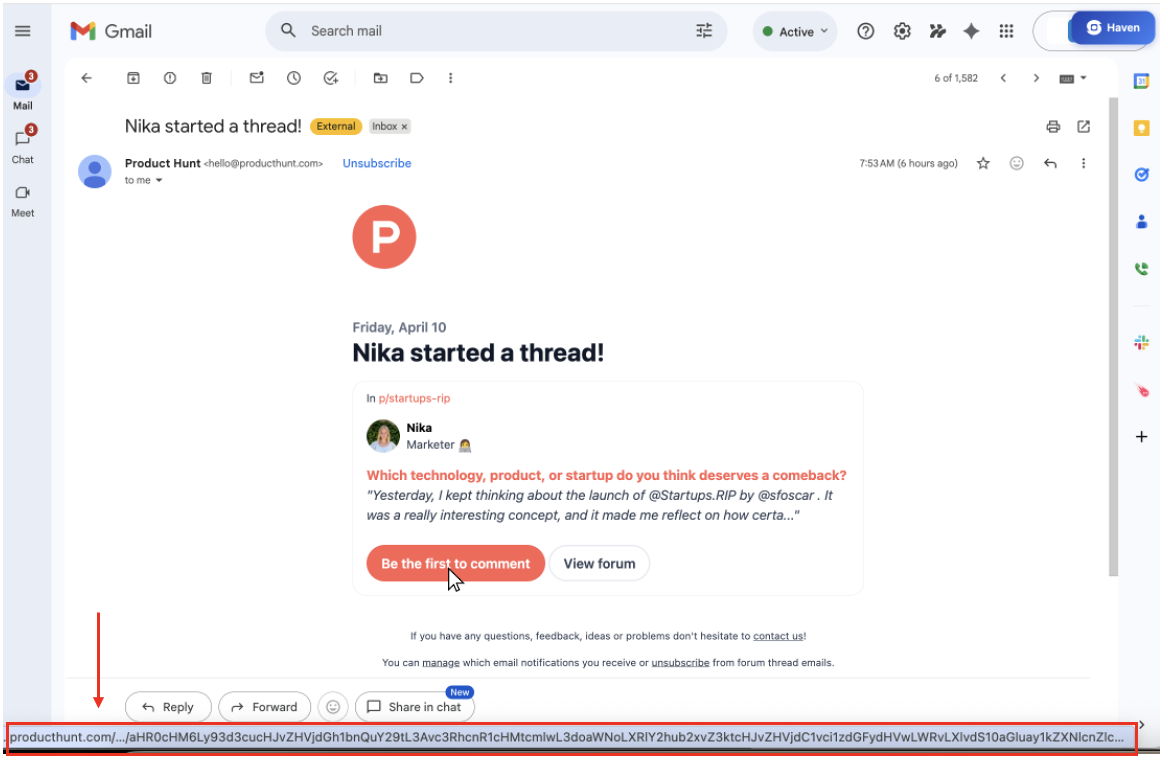
Before clicking any link, hover your mouse over it without clicking. On most email clients including Gmail, the actual destination URL will appear in the bottom left corner of your screen. That URL is where the link will actually take you, and it may be completely different from what the link text says.
Read that URL carefully before you click. Does it match the organization the email claims to be from? Is the domain spelled correctly? Does anything look slightly off?
For a more detailed guide on how to evaluate whether a URL looks legitimate, read our guide on how to tell if a website is real.
Never click links in emails about sensitive accounts
This is worth stating as its own rule, not just a footnote.
If you receive any email related to your bank, your taxes, your health insurance, your investment accounts, or any other sensitive service, even if the email looks completely legitimate, do not click the link. Go directly to the website instead. Type the address into your browser or use a bookmark you have already saved.
This habit alone would stop the majority of financial scams. Legitimate banks and financial institutions will never be upset that you navigated to their site directly rather than clicking their email link. Only fake ones need you to click.
If you're ever unsure about a link, you can paste it into Haven's free link checker to verify it's safe before clicking.
Check for generic greetings
Legitimate companies that hold your account know your name. An email from your bank, your insurance provider, or any service you are registered with should address you by name. "Dear Customer," "Dear User," or "Dear Account Holder" from a company that has your personal information on file is a red flag worth noting.
It is not definitive on its own, but combined with any of the other signals in this list, it adds up.
Watch for unexpected attachments
If someone sends you an attachment you were not expecting, especially a PDF, a Word document, or a zip file, pause before opening it. This applies even if the email appears to come from someone you know.
Send them a quick message through a separate channel to confirm they meant to send it before you open anything. One of the most common ways devices get compromised is through attachments in emails that appeared to come from a trusted contact.
When an email looks suspicious, trust that instinct
Scammers work hard to replicate the visual identity of legitimate companies. But they do not always get it right. If a logo looks slightly pixelated, the colors feel off, the formatting is inconsistent, or the email just looks cheaper than what you are used to receiving from that company, that is a real signal.
You do not need to be able to articulate exactly what is wrong. An email that looks suspicious usually is. Treat it that way until you can verify independently.
The rule that ties it all together
Every tip in this post comes back to one principle: when something feels off, verify through a separate channel before you do anything else. Call the person. Go directly to the website. Use a number or address you already have, not one provided in the email.
Is this email real? A genuine message from a real person or organization will always survive a quick independent verification. A fake one will not.
For a real-world example of just how convincing a fake email can look, read about the DocuSign phishing email that passed every filter and fooled a leading security tool.
And if you want to understand why even Gmail misses these, here's why Google's filters have structural limitations that scammers exploit
Haven scans your inbox to flag suspicious senders and emails that do not add up, so you get an alert before you click anything. Download Haven free from the Chrome Web Store and add the layer that catches what your eye might miss.